¶ First page
To login to dashboard:
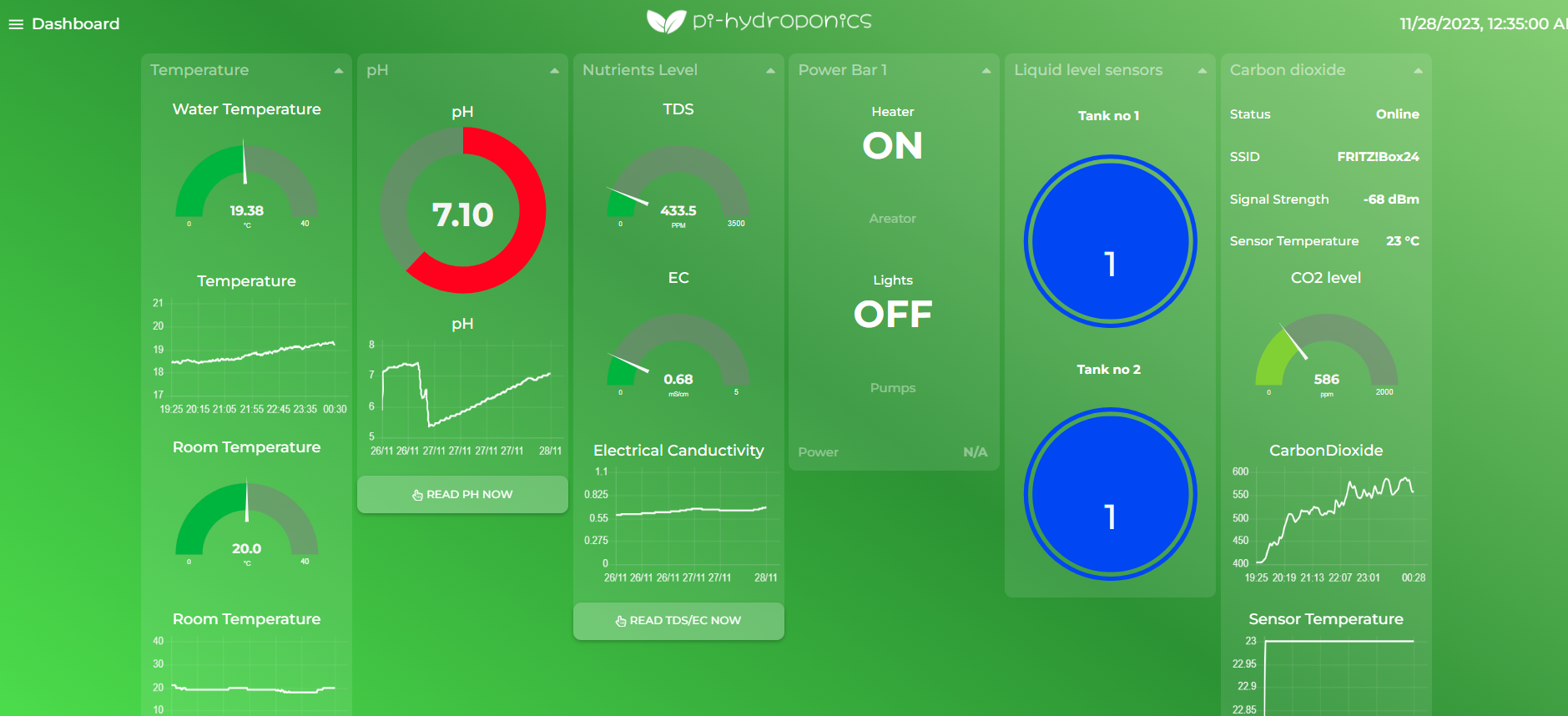
- Connect the Oceanberry to Wi-Fi network.
- Go to http://oceanberry:1880/ui (or http://<<assigned ip address>>:1880/ui)
In this page you can easily monitor you tank with live data, such as temperature, pH, power consumption in Watts, water level sensors and outlet status.


¶ Settings
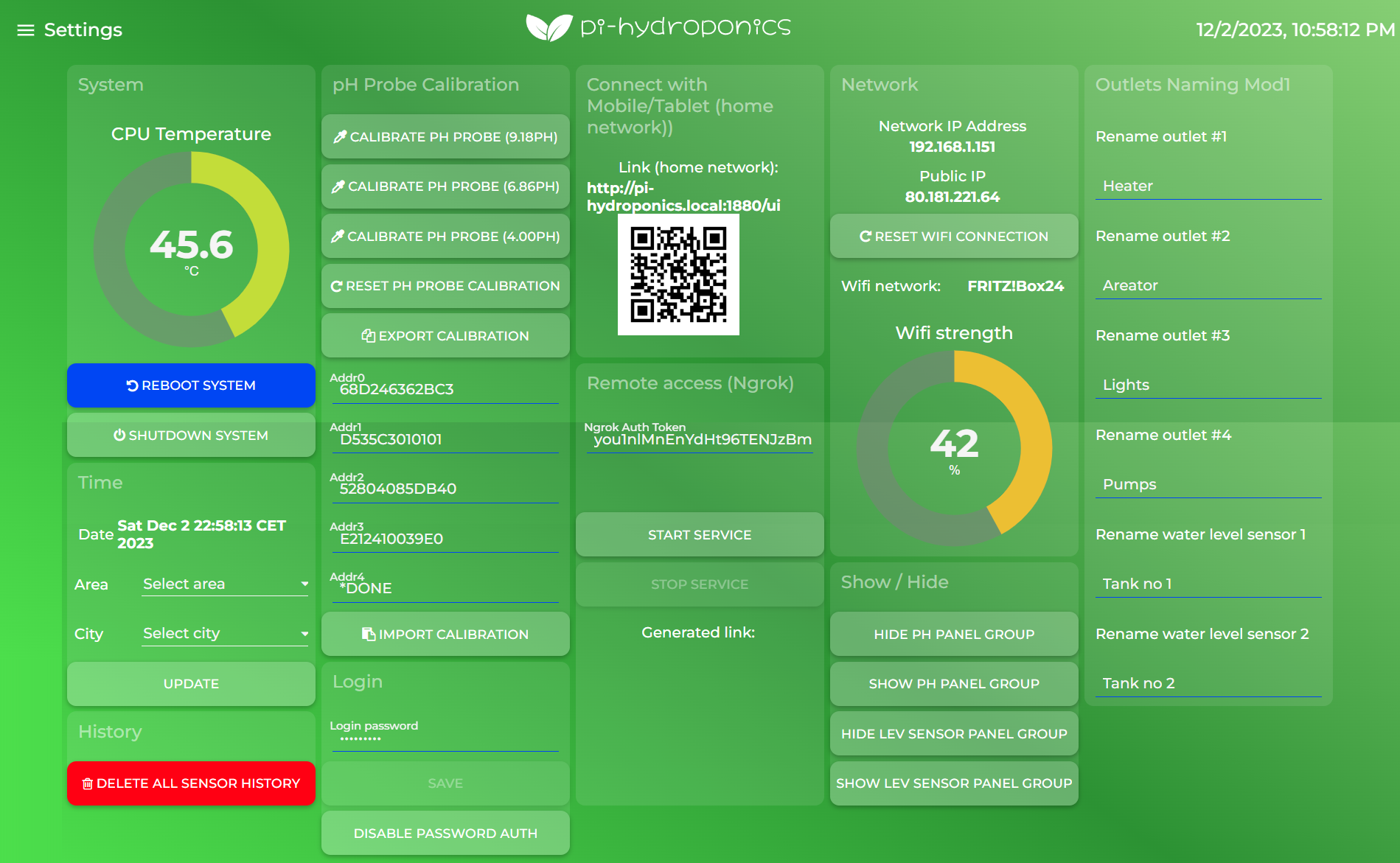
This is the page where you can setup all main functionality of Oceanberry.

¶ pH Probe calibration
You have to calibrate your pH probe, no matter how good is your device. The calibration procedure is very simple. What you need is 9.18, 4.01 and 6.86 buffer solutions. You can use pre-mixed solution or powder to mix with rodi water.
- Immerse the ph prove into the 9.18pH solution and wait 5 minutes
- Tap on “Calibrate pH probe (9.18)”
- Wash the pH probe with rodi water
- Immerse the ph probe into 8.86pH solution and wait 5 minutes
- Tap on “Calibrate pH probe (6.86)”
- Wash again your probe with rodi water
- Immerse the ph probe into 4.01pH solution and wait 5 minutes
- Tap on “Calibrate pH probe (6.86)”
- Put your probe back into the tank, it is calibrated!
Make sure to repeat the same procedure every month. We do recommed to get “double junction” pH probe which is used for continous measuring. A cheaper pH proble would last not that much.
You can aso import or export your ph calibration settings using the buttons “import and export calibration”.

¶ CPU temperature
To ensure the longest durability of your Raspberry the CPU temperature should remain below 60 °C. We know that tank environment “especially marine reef tank” can be quite warm. A silent fan will provide the right amount of fresh air to keep CPU temperature below 45°C. Fan will run only if required.
¶ Setting Time zone
Just select your time zone.
¶ Reboot and shutdown the controller
We do recommend to shut down or reboot the controller using these button. Accidental power off could cause file system corruption on your SD card.
¶ Network setup and initialization
In case you would like to change the wifi network push the RESET button on Oceanberry front cover for 10 seconds or tap this button. This will turn the WiFi adapter to AP mode using IP address 10.41.0.1
To restore the wifi connection, connect to the newly created wifi network called “oceanberry”, then select your wifi and type your wifi password.
NB: With Banana Pi Zero M2 this funtionality is not enabled. The wifi adjustment can be set with the console terminal using armbian-config executable.
¶ Wi-Fi Strength
This is an indication of your WiFi signal strength. Indeed, Oceanberry needs a decent signal strength.
¶ Login authentication
¶ Remote access (outside domestic Wi-Fi)
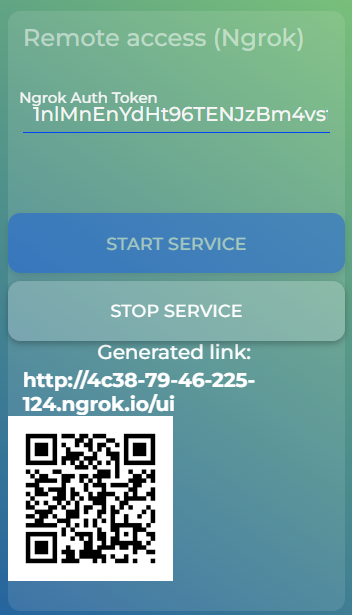
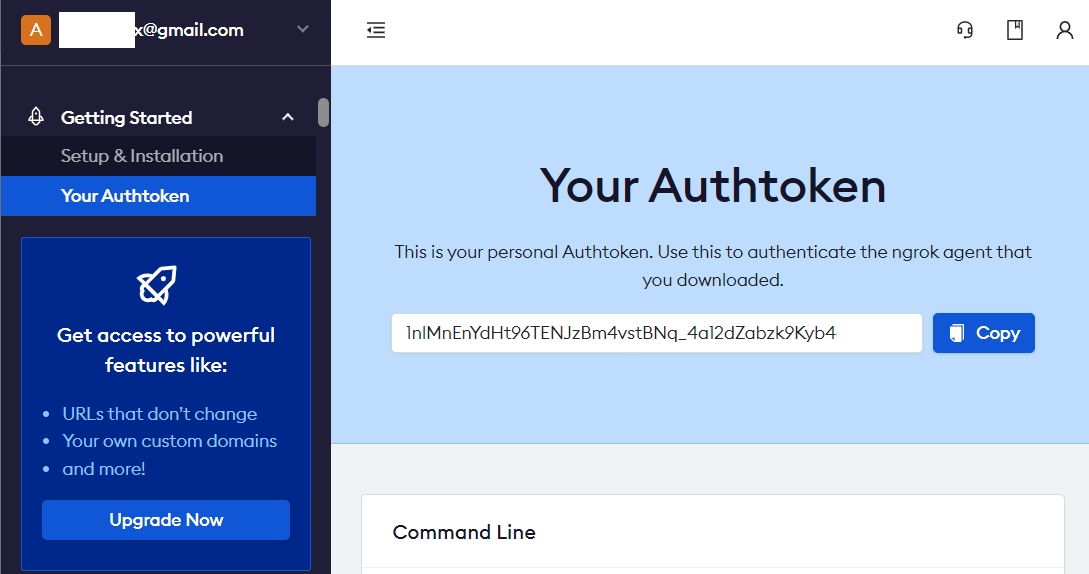
You can access to your Oceanberry outside your home network using the http tunnelling technolgy offered by Ngrok.
It is just needed the token provided by Ngrok.com.
Once obtained, copy and paste the Autoken in the setting field and tap on start service. If everything is good you will have the remote http address and the related QRcode.



¶ Delete all sensor history
With this control you can delete all sensor history. Remember that these data cannot be recovered unless you’ve performed a backup.
To perfom a data backup:
- Go to http://oceanberry:8080 (or http://<<assigned ip address>>:8080)
- Click on Export
- Store the generated file in a safe folder
To restore a backup it is just needed to choose the backup file and click on Import.
Both procedure may take an a few minutes. Do not exit the page while running.
¶ Rename outlets description

This tab is used to rename the outlet socket in powerbar and level sensors as per your preference.
Remember that outlet #1 used for heater cannot be used for other function.
Last option allows to use outlet #4 as cooling function. You can connect your cooling fan if you want to keep temperature steady to the target.
¶ Power bar
In this page you can have the full control of your power bar.

¶ Heater outlet
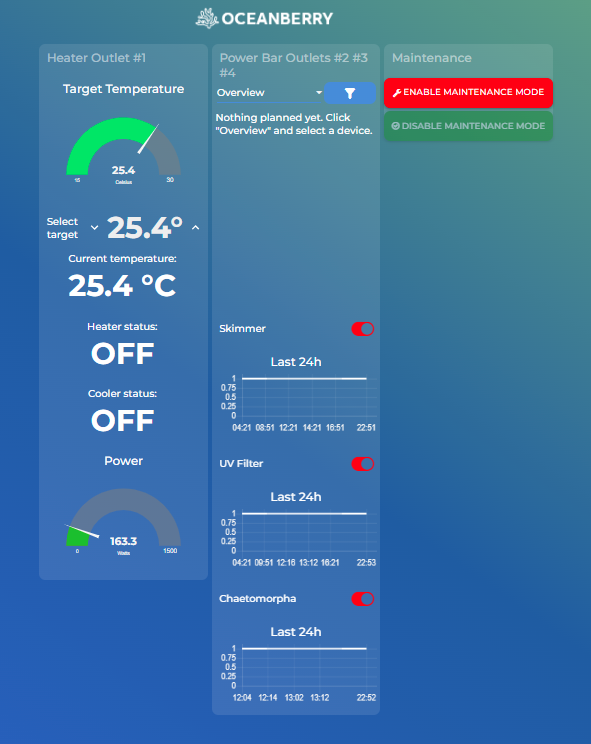
If you want to use the temperature control functionality the heater outlet (#1 module 1) must be connected to your aquarium heater.
You can easily select the target temperature using the selector. The ripple is set to +/- 0.1°C in order to keep the temperature (and system) as stable as possible.
Outlet #2, #3 and #4 are free and you can connect any other device like pumps, UV lamps, filters etc.
Outlet #4 module 1 can be used to power your cooling fan (remember to set the related function in “outlet naming” panel).
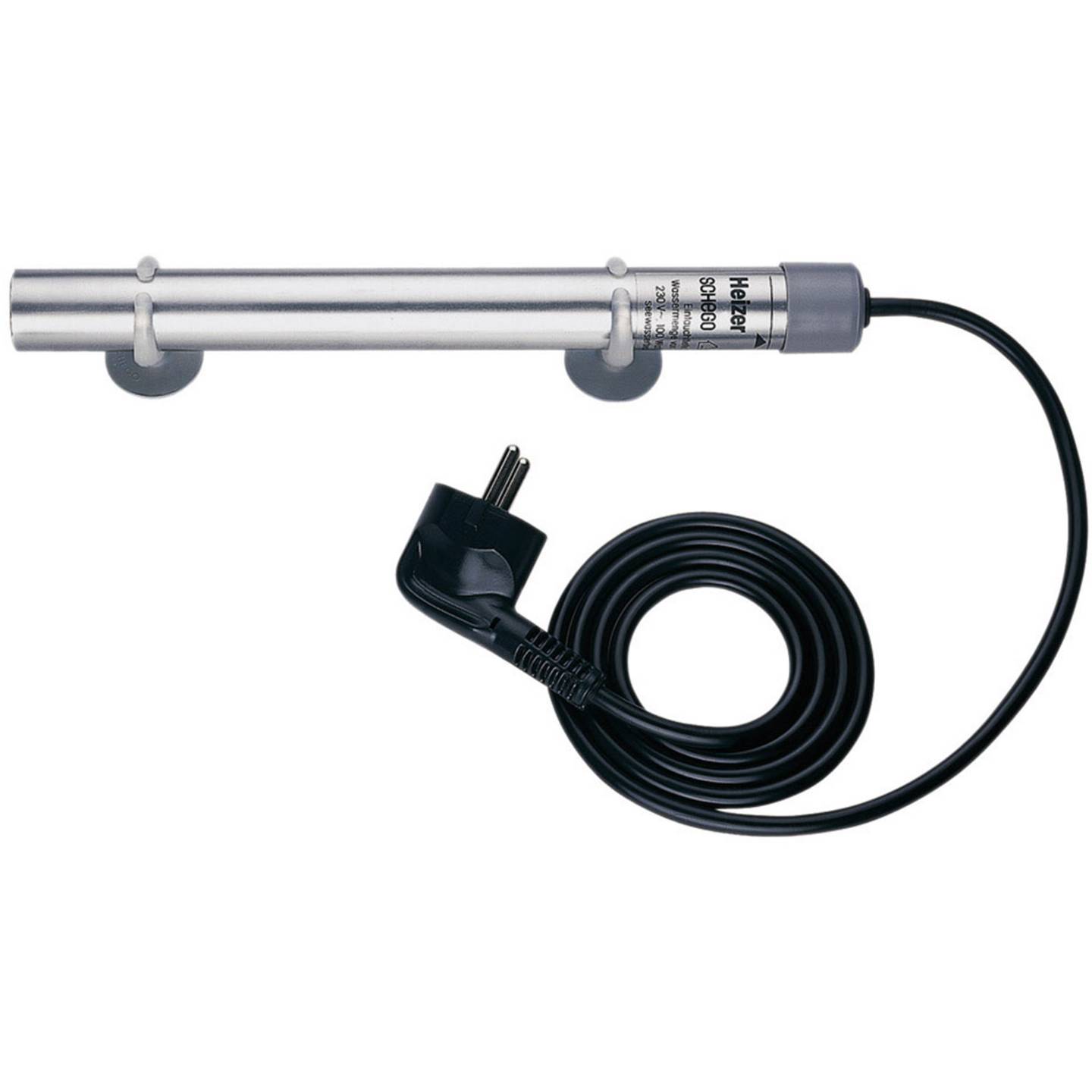
We recommend to use a non-regulated titanium aquarium heater. You can use also a standard one (with temperature regulator) but remember to set it just above the target temperature.

Non-regulated titanium aquarium heater
¶ Schedule function (for #2, #3, #4 module 1-2-3)
This panel is used to program the outlet as per your preference (by hour, by day).
¶ Maintenance mode
This function consent to switch your controller in maintenance mode. This is very useful for example for water changes or whenever you need to shut down all devices.
If enable, all outlets will turn off automatically. When disabled, you need to turn on again manually your devices.
¶ Alerts
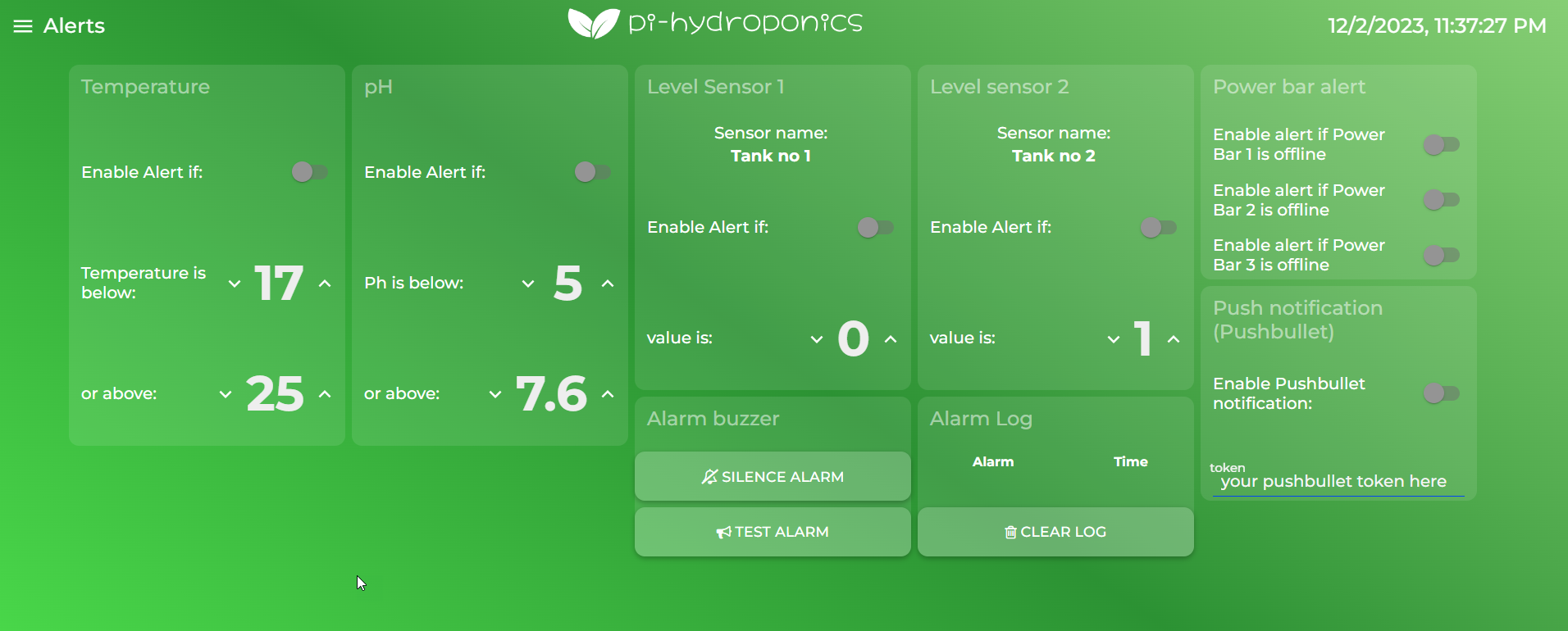
Oceanberry contains a buzzer which allows to give sound notification whenever temperature, pH, level sensors or powerbar gives a certain input.
You can easily configure to enable/disable alerts for:
- Max and min temperature
- Max and min pH
- level sensor is triggered or not
- Tasmota Power bar Module 1-2-3 is not connected to network or offline.
¶ Set push notifications
Thanks to pushbullet integration you can get mobile push notification on your mobile. Also in this case it is just needed to get the token from your pushbullet account.
¶ Test buzzer
It is a good thing to test the buzzer whether it is working or not. Tap on “test alarm” to test the buzzer, “silence alarm” button to power off the buzzer.
¶ Alerts log
List of last alert given by oceanberry. Tap “clear log” to flush the logger.
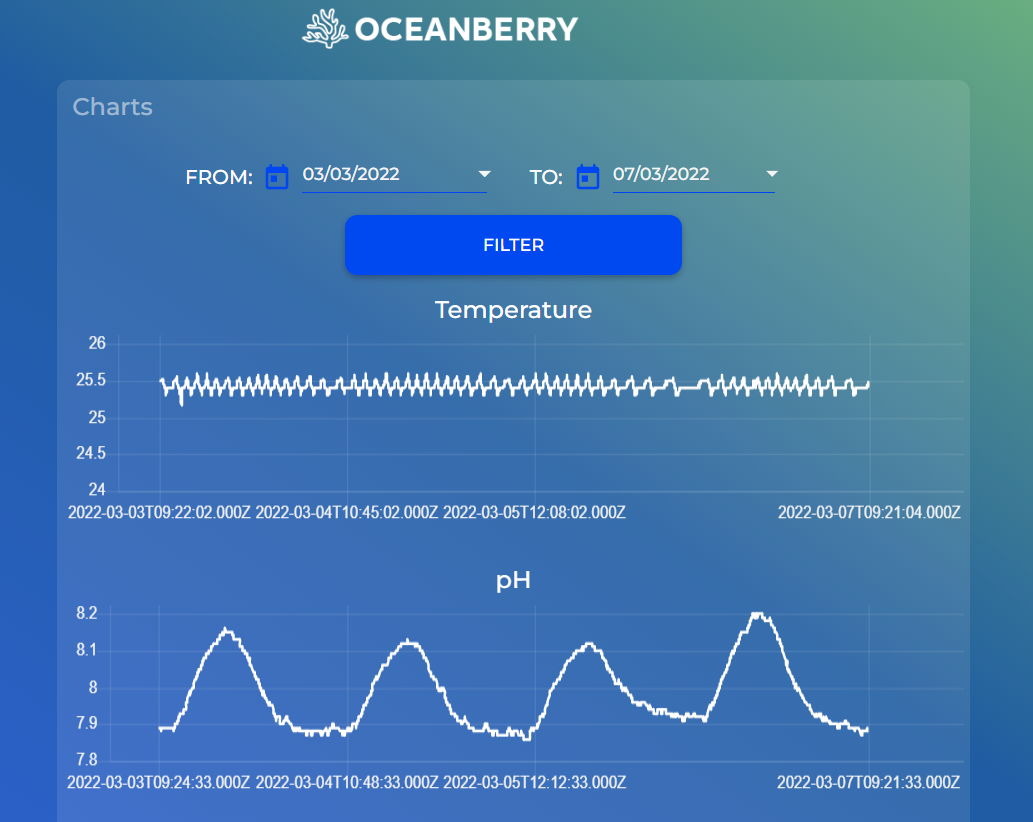
¶ Charts
Oceanberry gives the opportunity to monitor in the past how temperature, pH and Heater state.
Oceanberry can store more than 3 years of logs (using a 16GB sd card).